
In the past, i showed you how to create a desktop extension for your Ning network using chrome, but that was just too easy. Now I am going to show you a trick that takes only a few minutes and in the end you'll have a Google Chrome Web App of your Ning network and can submit it to the Chrome Web Store for your members to download and use. Here is a look at the finished product as seen in the Google Chrome Browser (along with a custom theme I made for my network for land surveyors, which may become a future how-to post):
What the heck is a Chrome Web App?
You can create application shortcuts to websites that you regularly visit, as well as apps that you've installed from the Chrome Web Store. These shortcuts can be placed on your computer desktop and menus for quick and easy access.
What is required to make a CWA?
A Chrome Web App requires two components, the Manifest and an Icon.
The Manifest is a JSON file with the namemanifest.json
The Icon is a 128px x 128px image that will be used on the New Tab page.
To create the Manifest, copy the following into a text editor like Notepad or TextEdit:
{
"name": "Your-Network-Name",
"description": "Your Description of Your Network",
"version": "1.0",
"icons": {
"128": "128.png"
},
"app": {
"urls": [
"http://www.yournetwork.ning.com/"
],
"launch": {
"web_url": "http://www.yournetwork.ning.com/"
}
},
"permissions": [
"unlimitedStorage",
"notifications"
]
}
You will need to make the appropriate changes (replace text and urls with red line beside them with your own) to the areas indicated below (name, description, urls, and launch):
Once this is done, save the file as manifest.json (NOT manifest.json.txt!!!)
Next, you need to have created an icon for your web app. You can use any graphics application such as photoshop or GIMP or web app that allows you to save it as a 128×128 png file. Save the file with the name 128.png.
NOW...Create a new folder somewhere on your computer and give it a name (connecting the words in the name with either an _ or - for example: Your_Network )and give it the name that you will call your Web app and place both the manifest and icon files inside the folder.
Now it’s time to install the Web App into Chrome.
1. Open Google Chrome.
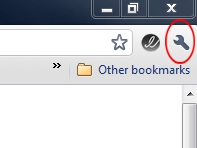
2. Click the wrench in the upper-right corner of the application.
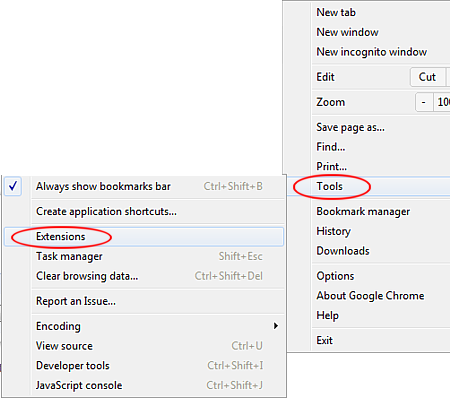
3. Click Tools and select Extensions.
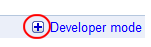
4. On the right side of the Extensions page, click the + that is next to Developer mode.
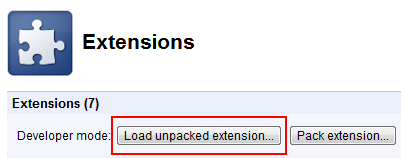
5. Click the Load unpacked extension button.
6. Browse to the Web App’s folder and click OK.
BOOM!! Your web app should now be created for your network, any errors are likely a manifest typo. Go back and check the manifest for any missed character(or an unnecessary ones).
Now when you click on the New Tab page in Chrome Browser, your new web app will appear with the others as shown above.
Whew..this post got long....i will create a follow up post soon to show you how to submit it to the Chrome Web store and share with your members. For now, you have all you need to run your new app on your computer.

Replies
getting error that says "cannot load icon extension '128.png'"
thats not even the name of the icon
how do i fix this?
EDIT>> got it-had to name the icon 128.png....i guess that it has to match the code you posted..i was wondering what the deal was! Did you ever do a follow up to show how to add to store and share?
https://creators.ning.com/forum/topics/how-to-add-your-chrome-web-app
Enjoy!
Hi JaFarrow,
I tried doing this but getting an error. See below. I followed each step carefully. Attached is a copy of the folder with all the appropriate files.
I'm having the exact same problem, and I've followed the instructions precisely as written.
something might have changed with chrome themes and extensions...ill look into this.. this post was from Feb of 2011
Thanks J!
Thanks so much J!
-
1
-
2
of 2 Next